Five ways to capture a contact
Paper card, badge, QR code, photo or paste
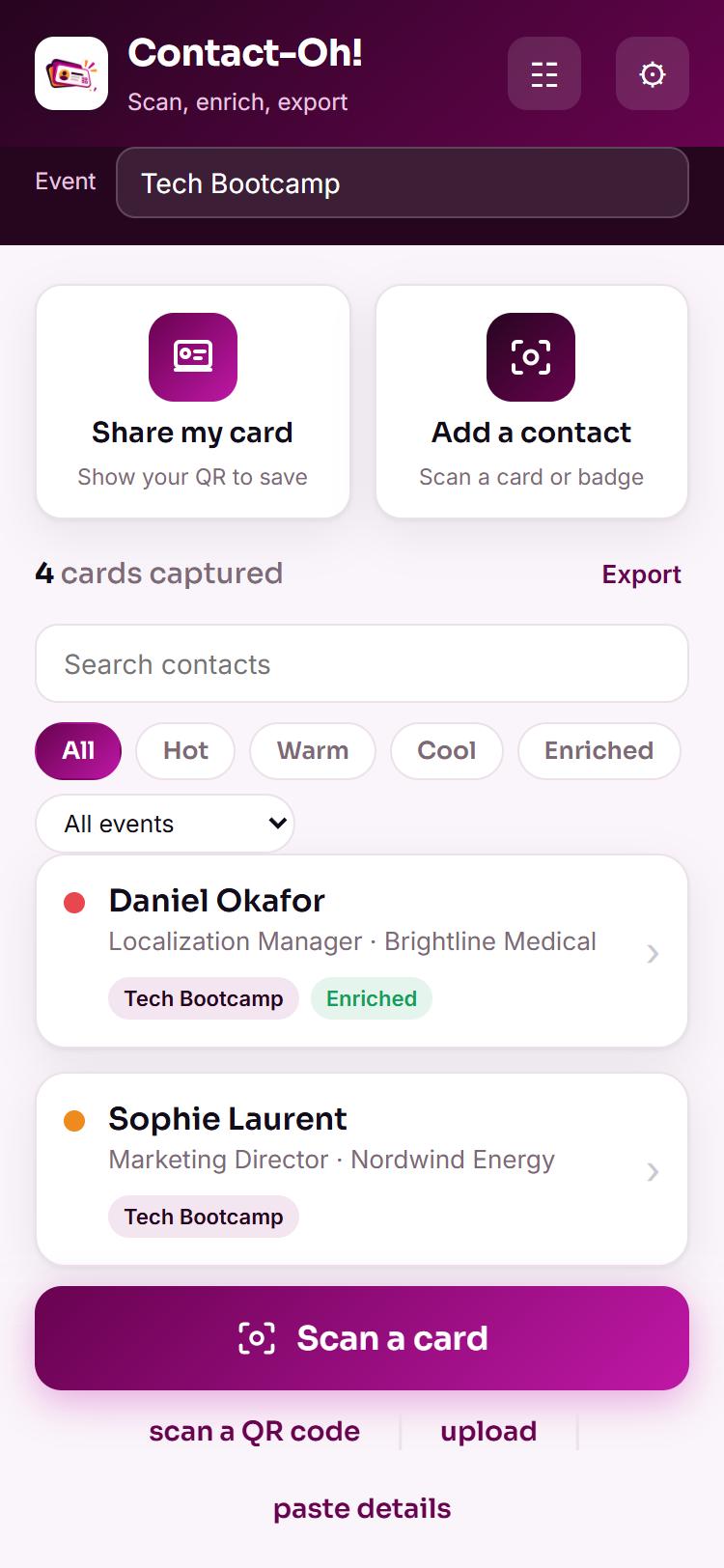
- Scan a card or a badgePhotograph a paper card or an event badge with the camera.
- Scan a QR codeRead a digital card someone shows you.
- Upload a photoPick a photo of a card you already have.
- Paste detailsDrop in an email signature or a LinkedIn link.
- Type it inNo photo, no key, no problem. Everything else works the same.
- Hot, warm or coolTag each contact on the spot, add a note, and tag the event where you met.
Your own card
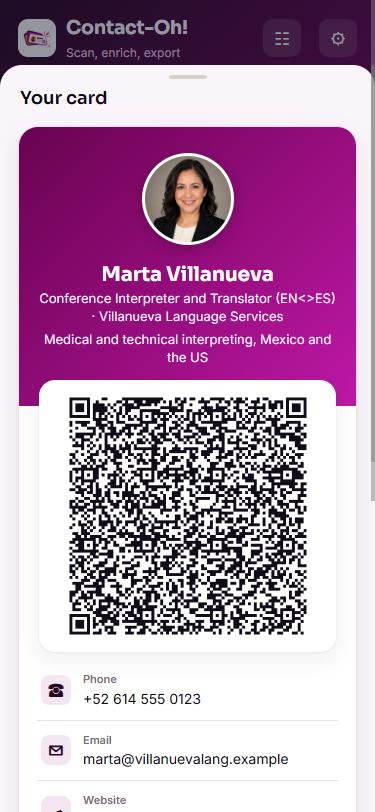
Show a QR code. They save you in one tap.
Once
Fill in your details
Name, title, company, email, phone, website, LinkedIn, a tagline and a photo. Under Settings, once.
At the event
Tap the card icon
Your QR code is on screen. Whoever scans it gets your contact with your links, straight into their phone.
After the event
Everything you captured, where you need it
- Save any contact straight to your phone contacts
- Export the whole list as CSV for a spreadsheet
- Export as vCards to add them all to your phone at once
- JSON backup of everything you captured
- Optional connection to the Client Relationship Hub
- Filter by hot, warm, cool, enriched, or by event
The AI part is optional
Your own key, a few cents, or no AI at all
Card reading and enrichment use your own Claude or OpenAI key. The key stays on your phone and is billed to your own account. Reading a card costs well under a US cent, and enriching a contact runs a few cents: a short brief on the company, with an opening angle written around the work you do. No key? Type the details in and skip the rest.
- Your data
- No account, no server, no sign-in. Captured cards live on your device until you export or delete them.
- What you need
- A phone with a camera and a current browser: Safari on iPhone, Chrome on Android. A Claude or OpenAI key only if you want the AI features.
- What you get
- A private link to open Contact-Oh! and add it to your home screen, plus a built-in help guide. Free updates: you are always on the latest version.
- License
- For your own personal professional use.
Ready for your next event
Open the link on your phone, add it to your home screen, fill in your card. That is the whole setup.
Get Contact-Oh!Pay what you want · Checkout runs on Gumroad.